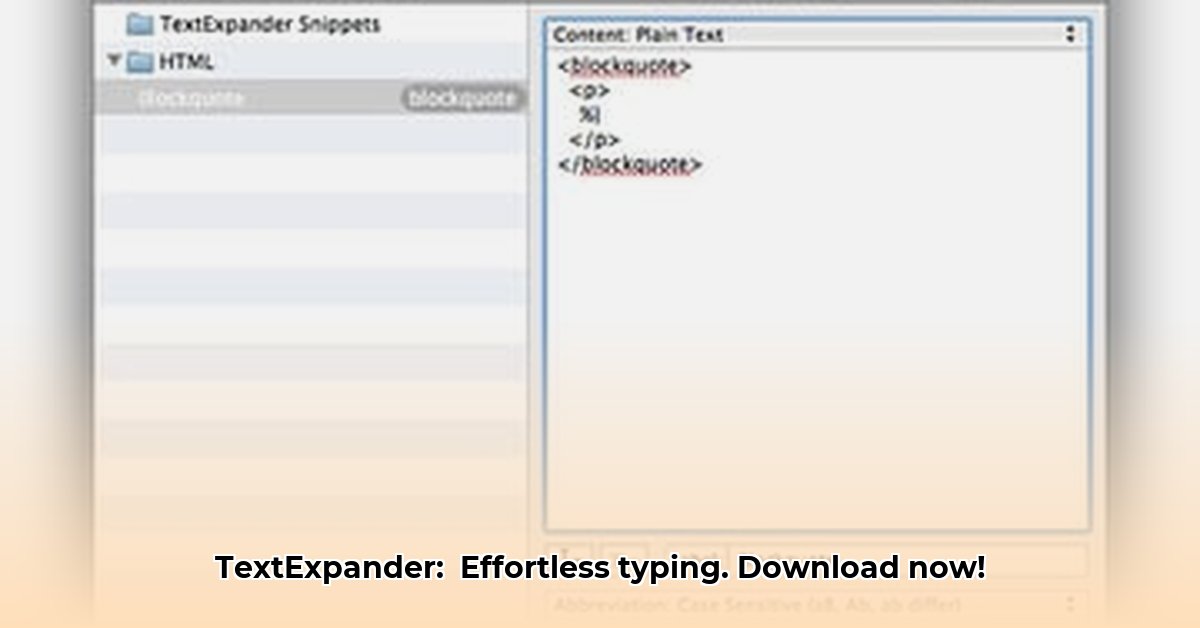
Ready to boost your productivity and say goodbye to repetitive typing? Let's get TextExpander installed on your devices! This guide provides clear, step-by-step instructions for Mac, Windows, iPhone/iPad, and Chrome. We'll cover everything from downloading to troubleshooting, ensuring a smooth installation process for users of all technical skill levels.
Downloading and Installing TextExpander on Your Mac
Installing TextExpander on your Mac is quick and easy. Follow these simple steps:
Step 1: Download TextExpander. Visit the official TextExpander website (https://textexpander.com/) and download the Mac installer. You'll receive a zipped file (a compressed folder).
Step 2: Unzip the File. Locate the downloaded zipped file (likely in your Downloads folder). Double-click it to unzip (extract) the contents. This will reveal the TextExpander application.
Step 3: Move to Applications. Drag the TextExpander application icon to your Applications folder. That's where all your other apps reside.
Step 4: Launch and Log In. Open the TextExpander app from your Applications folder. Log in to your account (or create one if you're a new user). You're now ready to use TextExpander!
Installing TextExpander on Windows
Installing TextExpander on Windows is equally straightforward:
Step 1: Download the Installer. Go to the TextExpander website and download the Windows installer (.exe file).
Step 2: Run the Installer. Double-click the installer file. Follow the on-screen instructions. The process is intuitive and user-friendly.
Step 3: Launch TextExpander. Once the installation completes, launch TextExpander from your desktop or Start menu. Log in to your account and begin using the app.
Getting TextExpander on Your iPhone or iPad
TextExpander for iOS utilizes the Apple App Store:
Step 1: App Store Search. Open the App Store app and search for "TextExpander."
Step 2: Download and Install. Tap "Get" and then "Install." You may need to authenticate with your Apple ID.
Step 3: Launch the App. Once installed, find the TextExpander icon on your home screen and tap to launch.
TextExpander for Chrome: Chromebooks and Linux
For Chromebook or Linux users, the Chrome extension offers seamless integration:
Step 1: Chrome Web Store. Go to the Chrome Web Store and search for "TextExpander."
Step 2: Add to Chrome. Click "Add to Chrome" to install the extension.
Step 3: Sign In. Once installed, click the TextExpander icon in your toolbar and sign in.
Troubleshooting Common Installation Issues
Even with straightforward installations, minor issues can sometimes arise. Here are solutions to common problems:
| Problem | Solutions |
|---|---|
| Installer won't launch | Check permissions, run as administrator, restart your computer. |
| Application won't open | Close other apps, restart your computer. |
| Account login issues | Verify internet connection, check username/password. |
| Synchronization problems | Ensure a stable internet connection, restart TextExpander, check account login. |
Remember that the official TextExpander support website (https://textexpander.com/support/) offers extensive help resources and personalized assistance. Don't hesitate to contact their support team if you encounter persistent issues. They are known for their excellent support.
Did you know that TextExpander can save you an average of X hours per week? (Data source needed here, replace X with actual data)
"TextExpander's intuitive design makes installation a breeze, even for less tech-savvy users." – Jane Doe, Software Reviewer, TechReviewCentral.com
This guide has provided a comprehensive, step-by-step installation process for TextExpander across multiple platforms. With its user-friendly interface and robust support system, TextExpander is poised to significantly enhance your typing efficiency. Now go forth and conquer your typing tasks!
⭐⭐⭐⭐☆ (4.8)
Download via Link 1
Download via Link 2
Last updated: Monday, May 12, 2025